
· Salesforce Guide · 13 min read
Salesforce Phishing-Resistant MFA: Step-by-Step Setup Guide (2026)
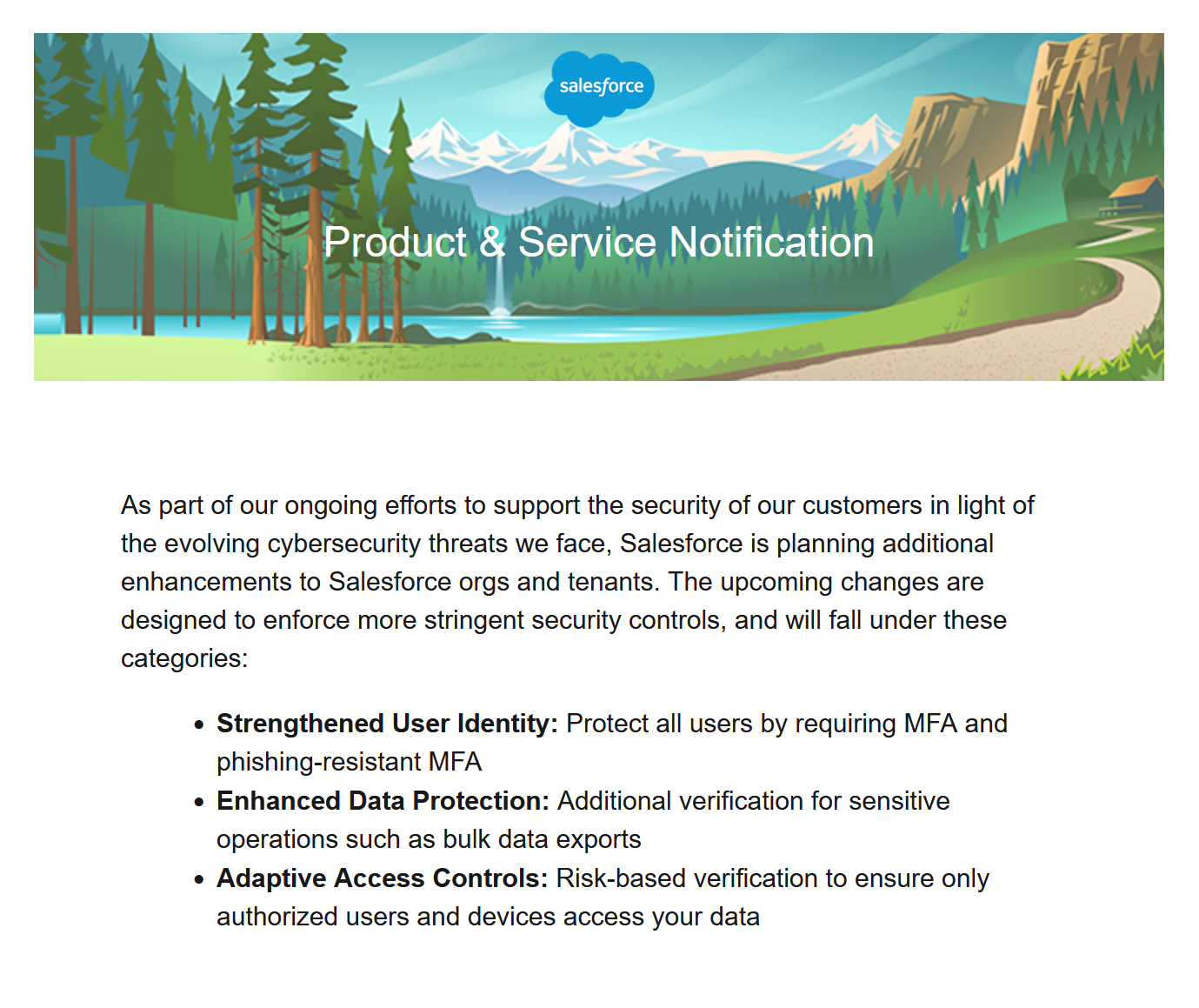
Salesforce is enforcing phishing-resistant MFA for privileged users and admins. This guide covers implementation steps and additional considerations.
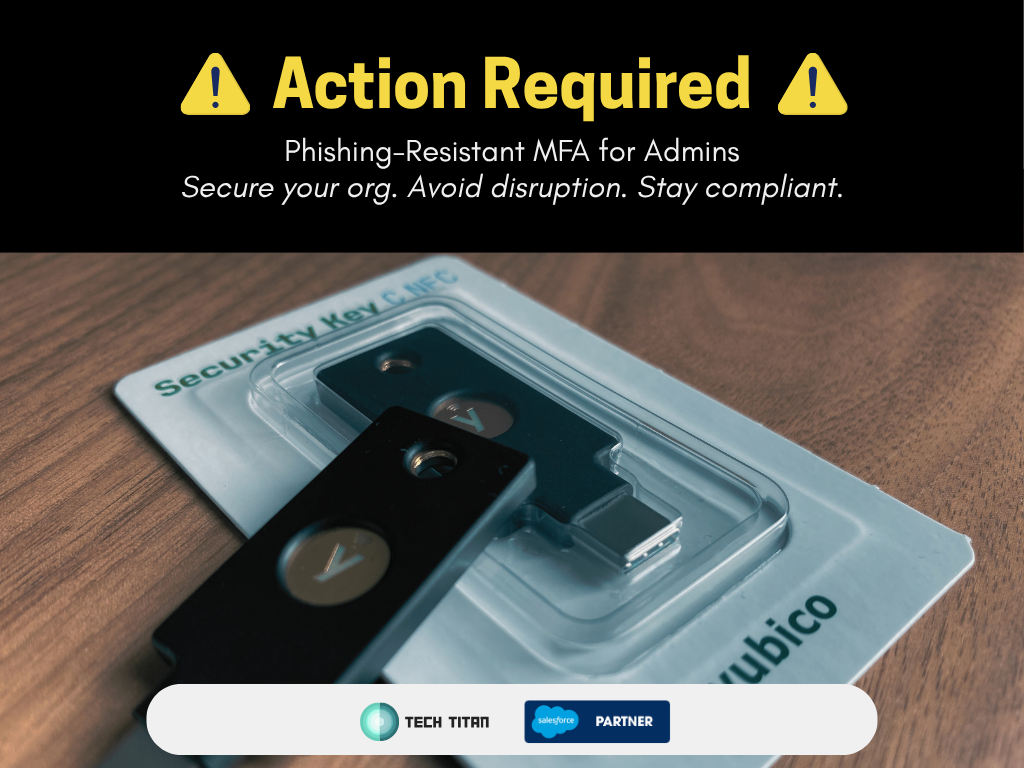
Salesforce is enforcing phishing-resistant MFA for Admins and other highly-privileged users. The requirement applies to UI logins including SSO, in both sandbox and production orgs.
Privileged users without a compliant verifier will be blocked from logging in once enforcement reaches their org. Sandboxes begin June 22, 2026; production begins July 1, 2026 (each staggered over several days).
This guide covers who is in scope, what counts as phishing-resistant, and a step-by-step setup to meet the requirement.
Jump to a section
Context
- What’s changing
- Why is this changing?
- When enforcement starts
- Who needs phishing-resistant MFA
- Who is not affected
- Methods that count as phishing-resistant
- What to expect at enforcement
- SSO: AMR and ACR signals
Implementation Steps
- Step 1: Inventory privileged users
- Step 2: Review profile and permission set assignments
- Step 3: Review Identity Verification settings
- Step 4: Review current MFA usage
- Step 5: Recovery plan
- Step 6: Enable methods and passkey login
- Step 7: How users register
- Step 8: Confirm in-scope users are compliant
Additional Considerations
Context
What’s changing
Salesforce is enforcing phishing-resistant MFA for users with the System Administrator profile or any of these permissions: Modify All Data, View All Data, Customize Application, or Author Apex (including when granted via permission sets).
The requirement includes:
- Direct username/password logins to the Salesforce UI
- Single-Sign On (SSO) logins to the Salesforce UI
- Production and sandbox orgs
Compliant verifiers use WebAuthn-based security keys and built-in authenticators. Salesforce also refers to these as passkeys and recommends passwordless login with passkeys where practical for faster, phishing-resistant sign-in.
TOTP apps (including Salesforce Authenticator) are standard MFA for many users, but they do not satisfy this requirement for privileged users once enforcement is active.
Why is this changing?
Admin accounts are high-value targets. If one is compromised, attackers can export data, disable other admin users, create backdoor integrations, persist access, etc.
Passkeys/security keys are stronger than typical app MFA:
- Reduced human error
- One-time passwords can’t be entered or sent to the incorrect sites.
- There is no push-approval that can be mistakenly approved.
- Domain binding
- Passkeys can only authenticate with the expected domain. Fake login pages cannot use a one-time verification code to log in to Salesforce on your behalf.
- No shared secret
- Private key stays on the device.
When enforcement starts
| Org type | Start date | Rollout |
|---|---|---|
| Sandboxes | June 22, 2026 | Staggered over ~7 days |
| Production | July 1, 2026 | Staggered over ~30 days |
Pre-register privileged users before these dates to avoid login disruptions.
Who needs phishing-resistant MFA?
A privileged user is anyone who has one of these permissions:
- Assigned the System Administrator profile
- Granted Modify All Data, View All Data, Customize Application, or Author Apex (via profile or permission set)
Network Access IP ranges do not bypass this requirement.
Official scope and policy details: Salesforce Help — phishing-resistant MFA for privileged users.
Plan for at least two phishing-resistant methods per in-scope user (for example, two keys, or a key plus a platform authenticator). See Why Salesforce Is Enforcing Security Changes in 2026 for background.
Who is not affected
These users are already compliant, exempt, or outside this change:
- Non highly-privileged users
- API and integration traffic (JWT Bearer, Client Credentials, and similar flows with no UI login)
- SSO logins where the IdP successfully passes a phishing-resistant MFA signal (AMR/ACR) to Salesforce
Methods that count as phishing-resistant
- Hardware security keys (WebAuthn / U2F), for example YubiKey or Google Titan, used with the real Salesforce login origin.
- Built-in platform authenticators (Touch ID, Face ID, Windows Hello) when used as WebAuthn, not as a convenience-only shortcut.
- FIDO2/WebAuthn passkeys, including passkeys stored in a FIDO2-capable password manager (1Password, Bitwarden, iCloud Keychain, and similar).
- Passwordless login with passkeys also counts: when Allow passwordless login with passkeys is enabled in Identity Verification, users can sign in with username plus passkey (built-in authenticator or security key) without a separate password step.
Not sufficient for phishing-resistant posture
These can still satisfy the general MFA requirement for many users, but privileged accounts must adopt more secure methods before enforcement:
- TOTP apps (6-digit codes can be typed into a fake site).
- Salesforce Authenticator
- Email, text, voice, or similar.
See Password managers and FIDO2 passkeys for when a password-manager-stored passkey is acceptable.
What to expect at enforcement
Direct UI logins
Privileged users are blocked until they register a compliant method (security key or built-in authenticator) and complete the MFA challenge on subsequent logins. After enforcement, privileged users cannot complete required MFA with Salesforce Authenticator or TOTP apps alone.
SSO logins
If the IdP does not send recognized phishing-resistant AMR/ACR signals, privileged users are prompted to enroll Salesforce phishing-resistant MFA. Before enforcement, in-app banners remind SSO users (and others in certain org configurations) to register.
Banners also appear when SSO is configured, org-wide Require MFA is off, Waive Multi-Factor Authentication for Exempt Users is assigned, or security keys and built-in authenticators are not offered to users.
Other login scenarios
- Connected Apps and External Client Apps using OAuth Web Server or Hybrid flows require a UI login to authorize; that login is subject to MFA enforcement. JWT Bearer and Client Credentials flows are unaffected.
- Trial orgs converted to a paid subscription no longer receive a 30-day MFA grace period.
SSO: AMR and ACR signals
For SSO, Salesforce relies on industry-standard signals in the IdP token:
- AMR (Authentication Methods Reference, RFC 8176)
- ACR (Authentication Context Class Reference)
Two paths to compliance:
- Configure your IdP to require phishing-resistant MFA and transmit compliant AMR/ACR values (see evaluation table), or
- Enable Salesforce MFA for SSO users who do not receive adequate IdP signals.
To validate OIDC deployments, review Login History for AMR values. SAML ACR values are not yet recorded in Login History (planned for a future release); use a SAML tracer or similar tool to inspect responses until then. The Salesforce SAML Validator assesses AMR/ACR claims but may not yet reflect the new three-tier strength definitions—treat IdP configuration and test logins as the source of truth.
If SSO uses phishing-resistant MFA at the IdP but Salesforce still prompts for enrollment, the IdP is likely not sending the expected signals—work with your IdP vendor to fix transmission before enforcement.
Implementation Steps
Step 1: Inventory privileged users
Identify everyone in scope before enforcement:
- Users with the System Administrator profile
- Users with Modify All Data, View All Data, Customize Application, or Author Apex
- Users assigned
Waive Multi-Factor Authentication for Exempt Users(plan Support cases for legitimate exemptions)
Use Salesforce reports, user list views, the User Access and Permissions Assistant, or SOQL. To find which profiles and permission sets grant the four permissions:
SELECT Id, Name, Label, IsOwnedByProfile,
       PermissionsModifyAllData,
       PermissionsViewAllData,
       PermissionsCustomizeApplication,
       PermissionsAuthorApex
FROM PermissionSet
WHERE PermissionsModifyAllData = true
   OR PermissionsViewAllData = true
   OR PermissionsCustomizeApplication = true
   OR PermissionsAuthorApex = true
ORDER BY IsOwnedByProfile DESC, Name
IsOwnedByProfile = truerows map to profiles.IsOwnedByProfile = falserows are add-on permission sets.
Map users assigned to those profiles and permission sets. You will validate those assignments in Step 2.
Step 2: Review profile and permission set assignments
Before you roll out phishing-resistant MFA, review whether each privileged profile and permission set is still appropriate. This is a good time to reduce access—not everyone who has Modify All Data or Author Apex today still needs it.
For each profile and permission set from Step 1:
- Confirm the permission set or profile is still valid for its intended purpose. If the business need is gone, strip down or retire it rather than carrying unnecessary privileged access forward.
- For each user still assigned to a privileged profile or permission set, ask whether they still need that level of access. Move users to a least-privilege profile or remove add-on permission sets where you can.
- Log the users who remain in scope after this review. This is your training and communications list—everyone on it will need to register a phishing-resistant MFA method before enforcement.
Document who owns each decision (manager, infosec, Salesforce admin) so access changes and MFA rollout stay aligned.
Next, we will review your org to understand its current MFA settings and adoption.
Step 3: Review Identity Verification settings
In Setup, open Identity Verification and confirm the following.
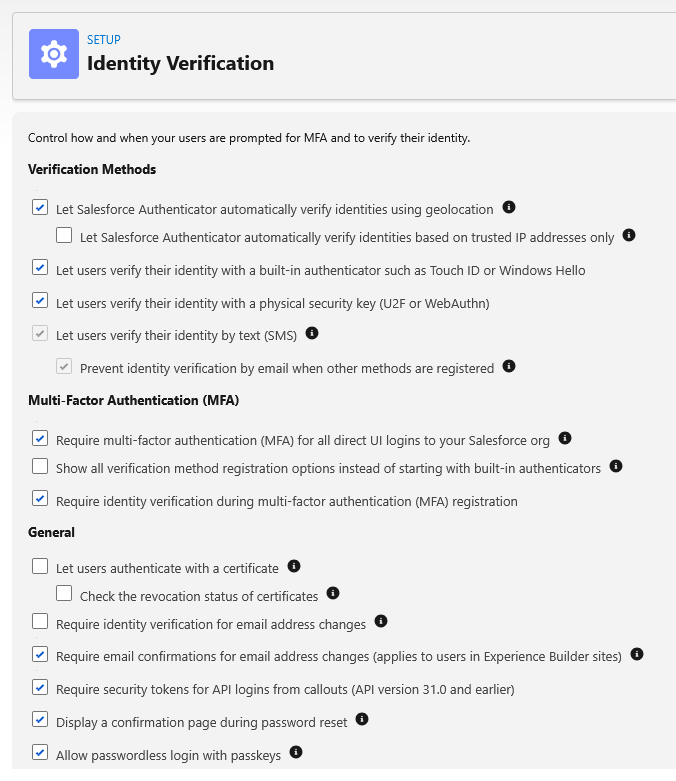
Verification Methods
- Enable security keys and built-in authenticators. Once enabled, they are available org-wide—Salesforce does not let you restrict them to admins only.
- Plan transition: privileged users will need these methods; other users may still use TOTP until their own MFA policies apply.
Multi-Factor Authentication
- Confirm Require multi-factor authentication (MFA) for all direct UI logins to your Salesforce org when appropriate for your broader MFA posture.
Allow passwordless login with passkeys
- Recommended: turn this on so users can sign in with username + passkey on their device. See Salesforce Help: Passwordless login using Passkeys.
Show all verification method options
- If users use multiple factor types, enable this so alternate methods are one click away during transition.
Require identity verification during registration
- Keep enabled.
General
- Skim remaining Identity Verification and General settings for gaps.
Test in a sandbox with production-like settings before org-wide enforcement.
Step 4: Review current MFA usage
Settings show what is allowed; Identity Verification History and Login History show what people use. This is your baseline before rollout—Step 8 is the final check before the Salesforce deadline.
- Open Identity Verification History (in production to see real user patterns; in a sandbox to confirm tests).
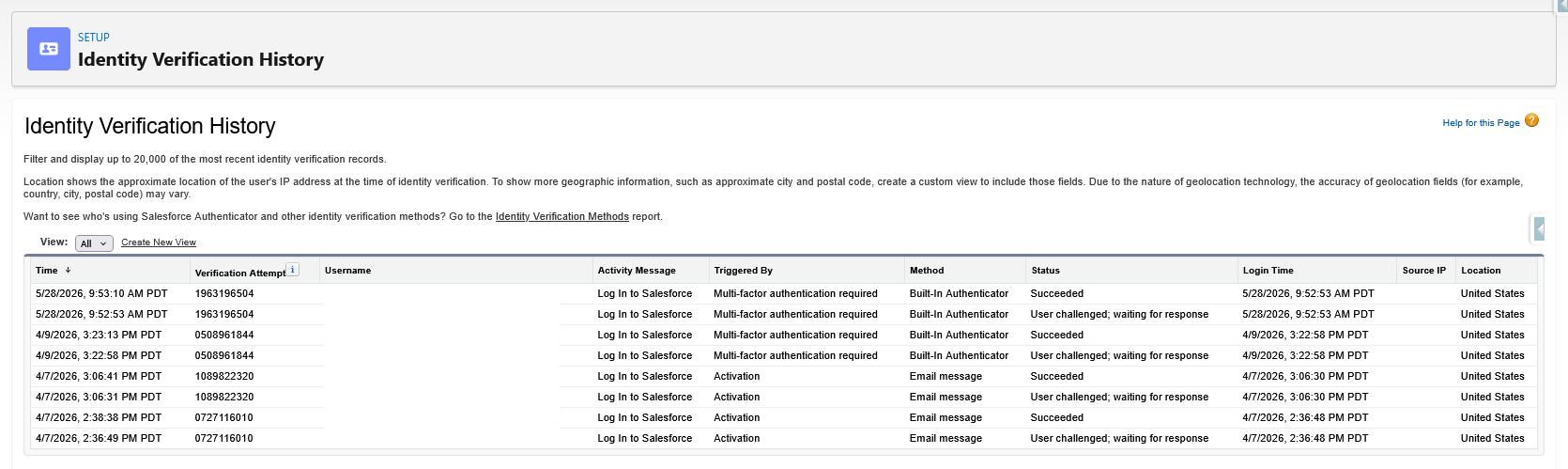
- For SSO, review Login History for AMR/ACR-related fields on privileged-user logins.
- Create list views filtered by team or profile to focus on admins.
What to look for:
- Built-in authenticator or security key — on track.
- Email — not valid MFA for login going forward. See exceptions for general users.
- Salesforce Authenticator or TOTP — standard MFA only; privileged users must migrate before enforcement.
Step 5: Recovery plan
Before you enable new methods org-wide, familiarize yourself with Salesforce’s MFA recovery options and create a Recovery Plan for your org.
Plan for:
- At least two phishing-resistant methods per privileged user where possible.
- A backup security key stored securely.
- At least two accounts that can manage users and MFA settings.
If a verifier fails, disconnect it on the User Detail page and have them re-register. Temporary verification codes from admins are standard MFA—not a long-term substitute for phishing-resistant enrollment for privileged users. See MFA access recovery in Salesforce Help.
If a privileged user is fully locked out and no other admin can restore access, contact Salesforce Support for a one-time login code. Document your org’s Salesforce.com Organization ID (Setup → Company Information) somewhere your team can reach it if all admins are locked out—you will need it when opening a Support case.
Communicate these recovery steps to in-scope users when you send enrollment instructions so they know what to do.
Step 6: Enable secure methods and passkey login
In Setup → Identity Verification:
- Enable built-in authenticator and physical security key.
- Enable Allow passwordless login with passkeys if you want passwordless sign-in.
- Ensure Require MFA and registration settings match your org policy.
- Save and test enrollment in sandbox: enroll a passkey, complete login, and (for SSO) confirm IdP signals if applicable.
Communicate the June/July timeline to the in-scope users you logged in Step 2 so they register early.
Pilot tip: Roll out to a small admin group first before org-wide enforcement.
Step 7: How users register
- Log in with username (and password, unless using passwordless passkey login).
- If no compliant verifier exists, Salesforce blocks access until enrollment completes.
- Choose security key or built-in authenticator and follow the wizard:
- Built-in authenticator: device PIN or biometrics.
- Security key: insert or tap the key.
- On later logins: complete the phishing-resistant challenge (unlock device, use key, or passkey)—not push-to-approve on Salesforce Authenticator.
Salesforce is also moving to a two-step login UX (username first, then password or passkey). Existing Mobile SDK apps generally work without code changes, but automated UI tests may need updates.
Register at least two methods per privileged user before enforcement where possible.
Step 8: Confirm in-scope users are compliant
Before the Salesforce deadline, review history again and confirm every user on your Step 2 communications list has moved to a compliant method.
- Open Identity Verification History in production. Filter or create list views by the in-scope users you logged in Step 2.
- For SSO users, review Login History and confirm phishing-resistant AMR/ACR signals are present on recent logins.
- Check each person’s most recent verification method. You want built-in authenticator or security key showing up—not Salesforce Authenticator, TOTP, or email.
- Follow up with anyone still on a non-compliant method. Re-send registration instructions from Step 7 and confirm they complete enrollment before enforcement reaches your org.
Repeat this review on a regular cadence as you approach the deadline so no one is surprised by a login block on enforcement day.
Additional Considerations
API, OAuth, and mobile logins
| Login type | Impact |
|---|---|
| API / JWT Bearer / Client Credentials | Not in scope—no UI login |
| OAuth Web Server / Hybrid (Connected Apps, External Client Apps) | UI authorization login is in scope |
| Salesforce mobile app / Mobile SDK | Phishing-resistant MFA required for privileged users; SDK 13.2.0 and earlier WebView mode may block admins unless My Domain advanced authentication is configured. SDK 13.2.1+ adds a Login for Admins path using browser-based auth; admins can also use Login with Email on the Salesforce mobile app |
Password managers and FIDO2 passkeys
A password manager can satisfy the requirement when it stores and uses FIDO2/WebAuthn passkeys (1Password, Bitwarden, iCloud Keychain, and similar). The passkey provides phishing resistance—not the password vault alone.
Shared admin logins can continue if the shared flow uses a passkey registered in a FIDO2-capable password manager.
| Approach | Meets phishing-resistant requirement? |
|---|---|
| Password manager for credentials + TOTP or push MFA | No |
| Password manager that stores and uses FIDO2/WebAuthn passkeys | Yes |
| Passwordless login with passkeys in Salesforce | Yes |
FAQ
Who is a privileged user?
Anyone with the System Administrator profile or Modify All Data, View All Data, Customize Application, or Author Apex (via profile or permission set).
Can privileged users use TOTP or Salesforce Authenticator?
No—not after enforcement for required MFA. They remain standard MFA for non-privileged users. Privileged users facing barriers to hardware or biometrics should contact Salesforce Support or their account team.
Does this apply to SSO-only privileged users?
Yes. The IdP must send phishing-resistant AMR/ACR signals, or the user enrolls Salesforce phishing-resistant MFA when prompted.
Does enrollment change for all users?
Users prompted for new MFA after enforcement are directed to passkeys (security keys or built-in authenticators). Users not subject to the privileged-user requirement can still choose third-party authenticator apps when their policy allows.
How do I know enforcement is active in my org?
Confirm at least one of the valid MFA options is active and that privileged users are using that method.
How should consultants manage shared admin access?
Consulting and implementation partners often use one privileged Salesforce login across a team. That can stay compliant after enforcement if sign-in goes through a FIDO2/WebAuthn passkey stored in a shared password manager vault—for example 1Password, Bitwarden, or iCloud Keychain—not through a shared password plus TOTP or Salesforce Authenticator push.
Register the passkey against the shared admin user in Salesforce, store it in the team vault, and use that passkey for each login. A password manager used only for credentials with separate TOTP or push MFA does not meet the phishing-resistant requirement.
Where the contract allows, prefer named individual users with least-privilege permission sets over a single shared admin. When shared access is required, document who has vault access and rotate access when team members change.
See Password managers and FIDO2 passkeys for the full compliant vs non-compliant breakdown.
What if the only admin is locked out?
Contact Salesforce Support for a one-time login code if no other admin can restore access. Have your Salesforce.com Organization ID ready (Setup → Company Information)—see Step 5: Recovery plan.
Additional Resources
- Phishing-resistant MFA for privileged users (Salesforce Help)
- Salesforce multi-factor authentication FAQ
- MFA access recovery
- MFA Requirement Questionnaire
- Salesforce Security Changes 2026: MFA Deadlines and What To Do
If you need help assessing permissions, validating SSO signals, or rolling out secure keys, get in touch.