
· Salesforce Guide · 3 min read
June 2026 Security Upgrade Checklist for Salesforce
Salesforce is enforcing phishing-resistant MFA for privileged users and admins, amongst other requirements.
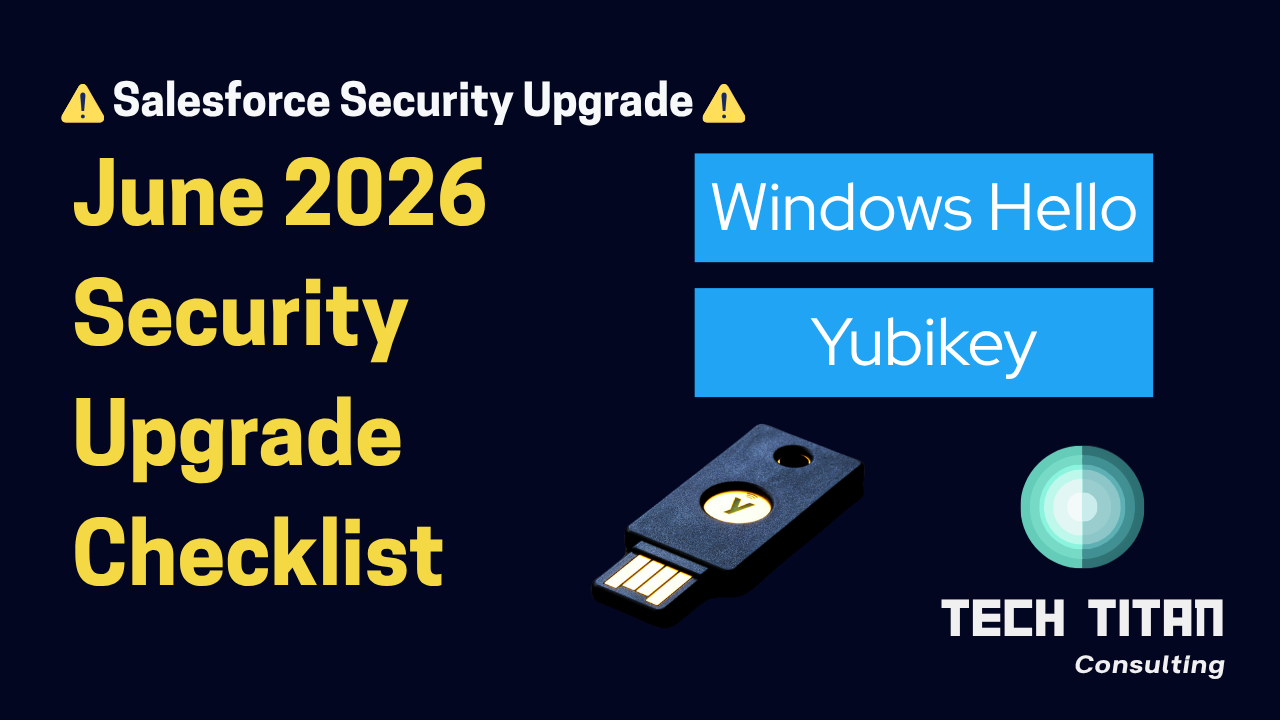
Salesforce is requiring all highly-privileged users to exclusively use a phishing-resistant MFA method for approval requests. This applies to sandbox and production logins.
Salesforce Authenticator does not satisfy this requirement. Only device-based (Windows Passkey) or physical keys (Yubikey) are considered phishing-resistant.
Salesforce is beginning enforcement of this requirement starting Monday, June 22nd for sandboxes and Wednesday, July 1st in production.
This is a high-level checklist of all that is needed to ensure you meet Salesforce’s new security requirements and don’t lose access to your org. For a more detailed guide and FAQs, see our Salesforce Phishing-Resistant MFA: Step-by-Step Setup Guide (2026).
1. Review all profiles and permissions sets with advanced permissions
Refer to Step 1 of our guide for a SOQL query to help. Assess whether you can reduce anyone’s permissions and identify all the remaining in-scope users.
These users will be required to adopt phishing-resistant methods to log in to the org.
2. Communicate rollout plan to admin users
Admins and other highly-privileged users will need to know that they should switch to exclusively use these secure methods.
Provide them documentation so they know how to manage their MFA methods and add the correct types.
You can see an example of how users will set up their MFA options either during login or after logging in.
3. Enable the necessary MFA options
In your sandboxes first, then production when ready, go to Identity Verification and allow the phishing-resistant MFA options: Built-in Authenticator and Security Key. See Step 6 of our guide for written setup steps.
Step-by-step Setup
Watch this configuration guide
4. Prepare for Recovery
Encourage all admins to register at least 2 MFA methods so they have a back-up.
Review our recovery plan guidance or our video on recovering user access to see how an admin can send a temporary verification code if someone lost their MFA method(s) and gets locked out.
Document your Organization ID listed in Setup > Company Information. This can be used as a last resort if all admins get locked out and you must contact Salesforce Support to restore access.
Additional requirements
In addition to requiring more secure MFA methods for admins, Salesforce has a couple additional requirements:
All internal users must use MFA
If you haven’t already, be sure the “Require MFA” setting is enabled in Identity Verification so that users are prompted to set up MFA.
The largest exception to this requirement is external community or experience cloud users - who do not need to use MFA at this time. Even if the “Require MFA” setting is enabled in your org, those users will still be exempt.
Users accessing Reports & Dashboards must approve an MFA request
Salesforce will also be requiring users to approve an MFA prompt whenever they try to access Reports & Dashboards. This is part of Salesforce’s plan to implement “confirm who you are” checks before certain sensitive operations.
Inform users that they will need to approve this MFA request when accessing reports.
Need help assessing permissions or rolling out secure MFA? Get in touch.