
· Salesforce Guide · 5 min read
Monitoring Salesforce Formula Field for Changes
Formula fields in Salesforce don't trigger record updates, making it impossible to monitor their changes directly. Here's a practical workaround to track formula field value changes through their underlying dependencies.
The Problem: Formula Fields Don’t Trigger Record Updates
In Salesforce, formula fields are calculated dynamically based on other field values. However, there’s an important limitation that many administrators and developers encounter: changes to the value of a formula field do not trigger any sort of update to that record.
This means that when a formula field’s calculated value changes, Salesforce does not:
- Trigger any sort of update to that record
- Fire Apex triggers
- Trigger Flow automations
- Execute Workflow Rules
Why This Is Problematic
The inability to monitor formula field changes directly creates significant challenges for automation:
- No Automated Responses: You cannot automatically respond to changes in formula field values, even when those changes represent important business events.
- Missing Workflow Triggers: Critical business processes that should activate when a formula field value changes won’t execute.
- Limited Monitoring: You cannot track or log when formula field values change, making it difficult to audit or debug issues.
- Broken Automation Logic: Automation that depends on formula field value changes will fail silently, potentially causing data inconsistencies or missed business opportunities.
For example, if you have a formula field that calculates a customer’s status based on multiple related records, and you want to send a notification when that status changes, you’ll find that your trigger or flow won’t fire because the formula field change doesn’t register as a record update.
Code Example: The Problem Illustrated
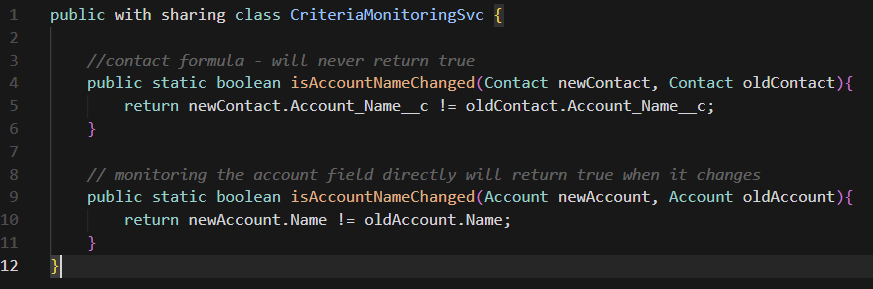
Here’s a concrete example that demonstrates why monitoring formula fields directly doesn’t work. If you have a Contact with a formula field Account_Name__c that references the related Account’s Name field, trying to detect changes to the formula field will never work:
// Contact formula - will never return true
// This method will never detect changes because formula field changes don't trigger record updates
public static boolean isAccountNameChanged(Contact newContact, Contact oldContact){
    return newContact.Account_Name__c != oldContact.Account_Name__c;
}

// Monitoring the account field directly will return true when it changes
// This is the correct approach - monitor the source field, not the formula
public static boolean isAccountNameChanged(Account newAccount, Account oldAccount){
    return newAccount.Name != oldAccount.Name;
}
The first method will never return true because when the Account’s Name changes, the Contact record isn’t updated (even though the formula field value changes). The second method correctly monitors the Account’s Name field directly, which will trigger when that field actually changes.
The Workaround: Monitor the Source Fields
Since you cannot monitor formula field changes directly, the solution is to monitor the fields and objects that the formula references. Here’s how to implement this workaround:
Step 1: Analyze the Formula
First, you need to understand what your formula field depends on. Examine the formula definition and identify:
- All fields referenced in the formula (from the same object)
- All related objects and their fields (through lookup or master-detail relationships)
- Any related list records that influence the calculation
Step 2: Identify All Dependencies
Create a comprehensive list of all objects and fields that could potentially change the formula field’s value:
- Direct field references: Fields on the same record that are used in the formula
- Related object fields: Fields from parent or child records accessed through relationships
- Related list records: Child records that might be added, updated, or deleted, affecting the calculation
Step 3: Implement Monitoring on Source Fields
Once you’ve identified all dependencies, implement your automation (triggers or flows) to monitor changes to those source fields and objects:
- On the Same Object: Create triggers or flows that fire when any of the referenced fields on the same record change
- On Related Objects: Set up automation on parent or child objects that could affect the formula calculation
- On Related Lists: Monitor changes to child records that influence the formula
Step 4: Evaluate Formula Impact
In your automation logic, determine whether the change to the source field actually results in a different formula field value. You can do this by:
- Comparing the old and new formula values (if accessible)
- Re-evaluating the formula logic based on the changed field
- Using conditional logic to check if the change affects the formula outcome
Example Scenario
Imagine you have a formula field Account_Status__c on the Account object that calculates status based on:
- The Account’s
AnnualRevenuefield - The total value of related Opportunity records
- The number of active Cases
To monitor when Account_Status__c changes, you would need to:
- Create a trigger or flow on Account that fires when
AnnualRevenuechanges - Create a trigger or flow on Opportunity that fires when the
Amountfield changes (and affects the related Account) - Create a trigger or flow on Case that fires when Case status changes (affecting the count of active Cases)
In each of these automations, you would then check if the change actually results in a different Account_Status__c value and execute your desired actions accordingly.
Best Practices
When implementing this workaround:
- Document Dependencies: Maintain clear documentation of which fields and objects your formula depends on, as this will be critical for maintaining your automation
- Test Thoroughly: Ensure your automation fires correctly for all scenarios where the formula value could change
- Consider Performance: Monitoring multiple fields and objects can impact performance, so optimize your automation logic
- Handle Edge Cases: Consider scenarios where multiple source fields change simultaneously, or when related records are deleted
Conclusion
While Salesforce formula fields don’t trigger record updates directly, you can work around this limitation by monitoring the underlying fields and objects that influence the formula. By implementing automation on the source dependencies, you can effectively track and respond to formula field value changes, ensuring your business processes continue to function as intended.